The other day I came across a Rhode Island Department of Health (RIDOH) social media post regarding a Public Health Alert for increased opioid overdose activity in a particular area of Rhode Island. See the particular post & heatmap below.
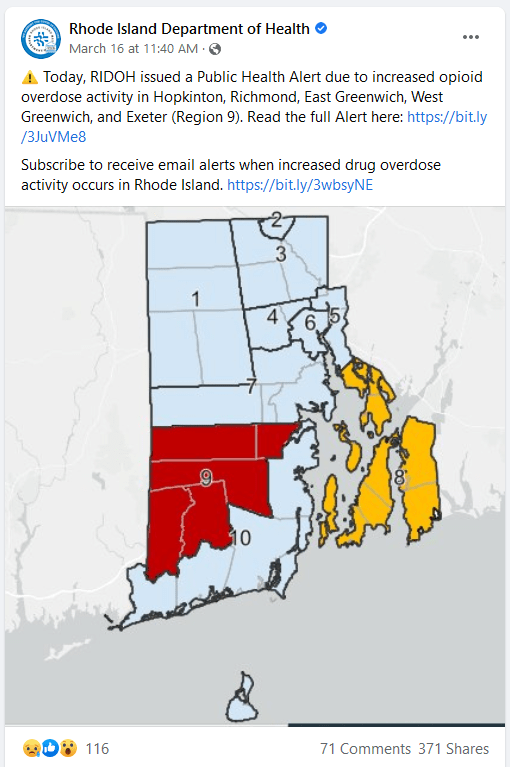
Since my research generally focuses on social media, information, information transmission, and health, I thought that this data might lead to some interesting projects. On top of that, my mother is a drug rehabilitation counselor in Rhode Island, so the issue is particularly salient to me. I think Rhode Island represents a small-scale example of a mounting national issue. Study of this data could provide a more nuanced context to the potential drivers of overdoses at the county level and perhaps how social media messaging may help in reducing cases.
I started to look around to see if the data was publicly available. RIDOH has a “Drug Overdose Surveillance Data Hub” which they say “provides several sources of non-fatal and fatal overdose data with a special focus on municipal, county, and statewide trends.” The website can be found here: https://ridoh-overdose-surveillance-rihealth.hub.arcgis.com/
Through their search feature, you can access documents and other files including data tables. Unfortunately, these data CSVs are all aggregated at the yearly level, and the few that are at the monthly level are aggregated at to state level. Through further digging, I was able to find PDF documents relating to the above heatmap. If you search “Opioid Overdose Integrated Surveillance System Report” you will get weekly reports that look like this:
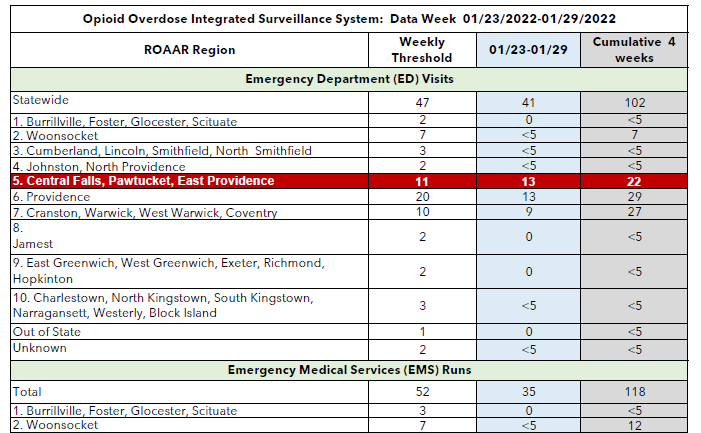
When you search for this document you will get ~225 results (as of 3/20/22), shown in increments of 20. Normally, one would have to painstakingly wade through all of these documents and download them one by one, as there currently does not seem to be some bulk download feature on their site. On top of this, a fraction of the documents are not the ones we’re interested in.
This is where webscraping comes to the rescue! Historically, most of my webscraping experience has been using packages like RCurl, and usually in situations where the URLs are known, or at least some part of the URL is known. For instance, in my most recent paper I scraped 250,000 images from a list of Twitter image URLs (metadata from Twitter’s API) which was then processed in optical character recognition software to provide context to the image content.
In our particular case here the website is developed using something called “ArcGIS Hub” which uses elements that seem to be Javascript based. Due to the nature of Javascript, the button that provides the next set of results is not another website, but expands the selection shown on the page. More traditional webscraping tools aren’t super great at this, I’m sure there are people out there that are hackier than me and could get it to work, but for a side project to quickly vacuum up some data, easier and faster deployment is preferable.
While thinking of how I might attack this problem, I was reminded of hacky way I once tried to bypass Twitter’s API collection process by using a program called Selenium to “drive” my web browser, to see if I could automate scrolling to the end of a Twitter feed and collect the message history that way (Unfortunately this does not work, and only shows you the last 3,000 or so tweets which is the standard amount you can pull using their regular free API anyway, BUMMER!). While it didn’t work I did however learn a bit about Selenium along the way!
RSelenium is an R packaged version of Selenium that allows you to do all the webdriving/scraping from your R terminal – and it’s fairly straight forward to use. I find this presentation much easier to manage than the Pythonic version I was using a few years prior for my Twitter problem (a lot of troubleshooting for Selenium on forums/Stack Overflow through Python, so knowing how to translate the Python code to R was helpful).
First install and load your package:
#install.packages("RSelenium")
library(RSelenium)
Next you have to set up the process for Selenium to “drive” your web-browser (note it will open a new window).
rD <- rsDriver(browser="firefox", port=4545L, verbose=F)
remDr <- rD[["client"]]

remDr$open()
Here, rD is setting up the connect to browser you will be using (in my case Firefox). It also has some options for selecting a particular port to use and other more advanced options. Port 4545L isn’t special here, it’s a stock port option used in RSelenium tutorials. Once you run remDr$open() your Firefox window will come to life and you will get this message in R, with other details relating to the session that has just spawned. I do think you can run this in headless mode, but I found troubleshooting much easier doing it with a live windowed session.
[1] "Connecting to remote server"
$acceptInsecureCerts
[1] FALSE

$browserName
[1] "firefox"

$browserVersion
[1] "98.0.1"

....
Great! we now have a spooky looking, empty, Firefox session, with a favicon of a little robot in the URL address bar!
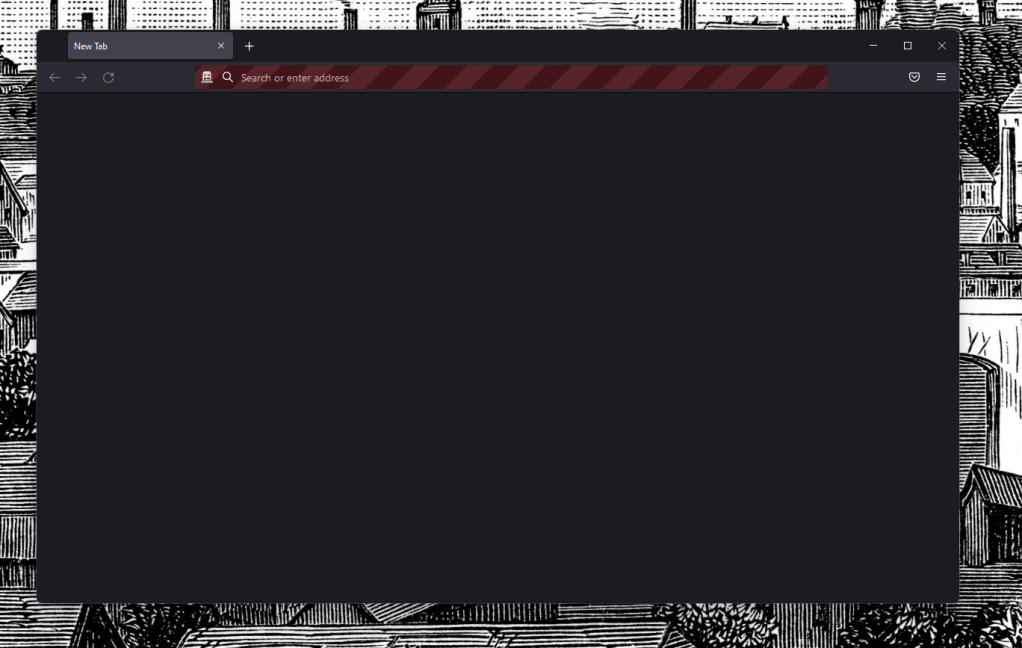
By using the command: remDr$navigate(“x”) we can direct the crawler to go to a website. For instance:
remDr$navigate("https://www.google.com")
Since I know which website I want to navigate to (in particular I know what search command I want to be made), I spent some time pre-configuring the URL. Which leads us to this:
remDr$navigate("https://ridoh-overdose-surveillance-rihealth.hub.arcgis.com/search?q=%22Opioid%20Overdose%20Integrated%20Surveillance%20System%20Report%22&sort=-created&type=pdf")
This URL will provide the first 20 PDF items related to their integrated surveillance system reports. Now for the tricky part…
How do I direct the crawler to click through the “More Results” button so that the entire list of documents to be scraped will be present? The first task is determining what the website’s source code calls the button in the first place. One way you can find this, is by right clicking the object of interest on the website and clicking “Inspect.”
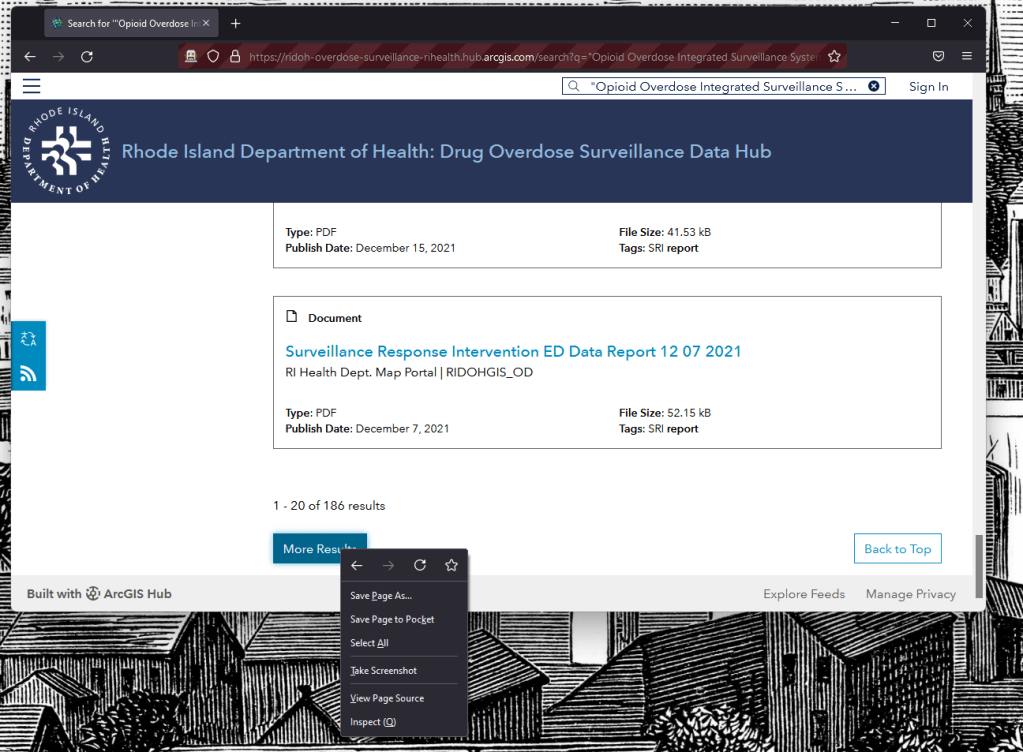
By clicking inspect, the browser you are using (in my case Firefox) devtools should also popup. Now the following may not totally replicate in other web browsers, so ymmv. In the case of Firefox, it will highlight the the particular element you inspected – here it’s highlighting “<button class=”btn more-results link-primary” …>”.
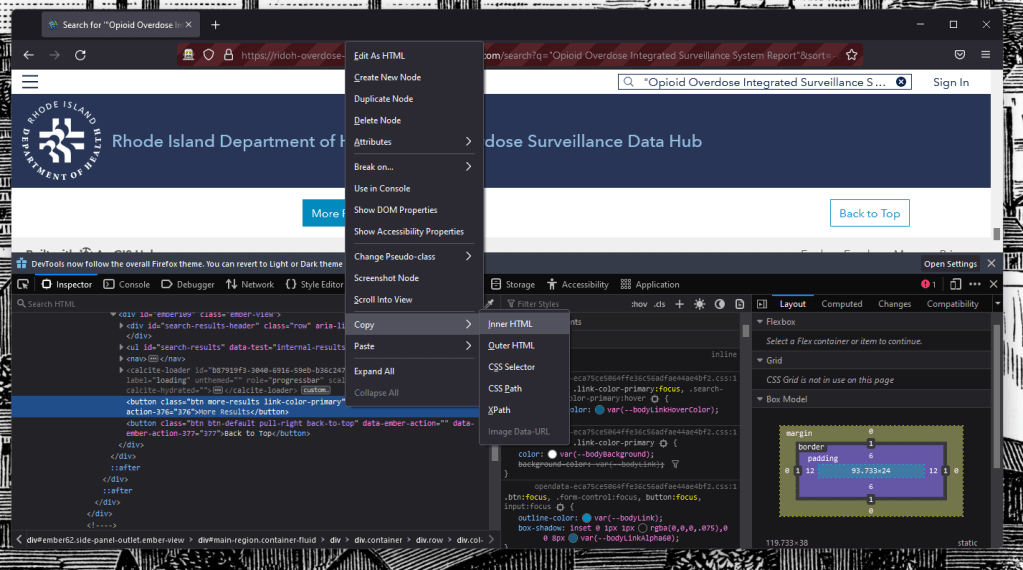
If you right click that snippet of code another menu will pop-up. By clicking copy and selecting CSS Selector you will get the following: “button.btn:nth-child(5)”. This is what the crawler will use to click the “More Results” button at the bottom of the page using the following R code:
remDr$findElements("css","button.btn:nth-child(5)")[[1]]$clickElement()
remDr$findElements searches through the css code in this case and identifies the “button.btn:nth-child(5)” we then direct it to “clickElement()” so that it gets us the next 20 results on the page. If we send this command a few times, we find that it works and loads the next 20, 40, 60 results. It’s good to know that “button.btn:nth-child(5)” isn’t particular to a specific iteration of the “More Results” button, where the second “More Results” button is child(6) for instance.
While this has only gotten us around one of the major problems, the next steps are:
- Isolate the list of PDFs to only ones I am interested in.
- Instruct RSelenium to visit the links and programmatically download each of the PDFs.
- Clean up the code so that it can check with a list of already downloaded files (important for future pulls).
- Construct a CRON job that can check each week for newly added files.
Following that set of tasks, I would then use an OCR table detection package to turn the weekly reports into usable data.
Thanks for sticking with me, I hope it was helpful learning a little into the troubleshooting process of working with RSelenium. Check back for future updates.
-Scott Leo Renshaw
 Ramblings